
The basic Linux commands for beginners, including file management, system information, and process control.
If you’re new to Linux or just need a quick refresher, you’re in the right place. I’ve put together this cheat sheet of the most commonly used Linux commands - the ones I actually use day-to-day, not just theoretical stuff.
Whether you’re SSH’d into a server at 2 AM trying to figure out why something broke, or just getting started with Linux, having these commands at your fingertips is a lifesaver. I’ve organized them by category so you can quickly find what you need.
FILES & NAVIGATING
These are your bread and butter - you’ll use them constantly.
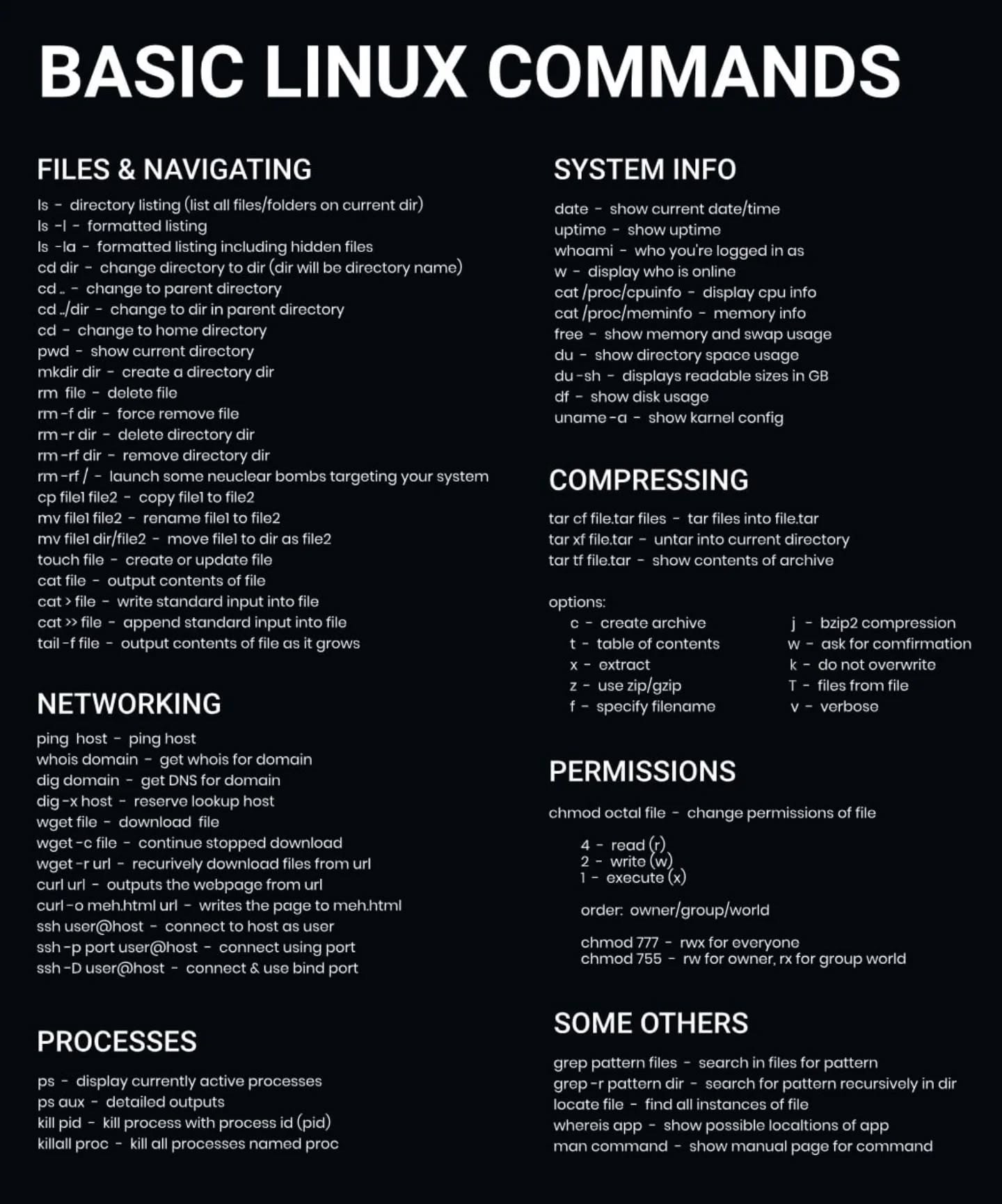
ls– directory listingls -l– formatted listingls -la– formatted listing including hidden filescd dir– change directory to dircd ..– change to parent directorycd ./dir– change to dir in parent directorycd ~– change to home directorypwd– show current directory (“where am I?”)mkdir dir– create a directoryrm file– delete filerm -f dir– force remove filerm -rf dir– delete directory dirrm -r dir– remove directory dirrm -rf /– DON’T DO THIS. Seriously. This nukes your entire systemcp file1 file2– copy file1 to file2mv file1 file2– rename file1 to file2mv file1 dir/file2– move file1 to dir as file2touch file– create or update filecat file– output contents of filecat > file– write standard input into filecat >> file– append standard input into filetail -f file– output contents of file as it grows (great for watching logs)
SYSTEM INFO
When you need to know what’s actually running and how it’s performing:
date– show current date/timeuptime– show uptime (how long has this server been running?)whoami– who you’re logged in asw– display who is onlinecat /proc/cpuinfo– display CPU infocat /proc/meminfo– memory infofree– show memory and swap usagedu– show directory space usagedu -sh– displays readable sizes in GB (much more human-friendly)df– show disk usageuname -a– show kernel config
NETWORKING
For when you need to download stuff or debug connection issues:
ping host– ping host (is it alive?)whois domain– get whois info for domaindig domain– get DNS info for domaindig -x host– reverse lookup hostwget file– download filewget -c file– continue stopped download (lifesaver for large files)wget -r url– recursively download files from URLcurl url– outputs the webpage from URLcurl -o meh1.html url– writes the page to meh1.htmlssh user@host– connect to host as userssh -p port user@host– connect to host on specific portssh -D user@host– connect & use bind port
COMPRESSING
tar cf file.tar files– tar files into file.tartar xf file.tar– untar into current directorytar tf file.tar– show contents of archive
tar options:
c– create archivet– table of contentsx– extractz– use zip/gzipf– specify filenamej– bzip2 compressionw– ask for confirmationk– do not overwriteT– files from filev– verbose
PERMISSIONS
This trips up a lot of people, but it’s actually pretty simple once you get it:
chmod octal file– change permissions of file
Permission values:
4– read (r)2– write (w)1– execute (x)
Add them up for combinations. So read + write = 6, read + execute = 5, all three = 7.
Order:
owner/group/world
Common examples:
chmod 777– rwx for everyone (use sparingly - it’s a security risk)chmod 755– rwx for owner, rx for group/world (good for scripts)chmod 644– rw for owner, r for everyone else (good for files)
PROCESSES
For managing what’s running on your system:
ps– display currently active processesps aux– detailed outputs (shows everything)kill pid– kill process with process id (pid)killall proc– kill all processes named proc (be careful with this one)
SEARCHING & FINDING STUFF
Because we all spend half our time looking for files:
grep pattern files– search in files for patterngrep -r pattern dir– search for pattern recursively in dir (searches subdirectories too)locate file– find all instances of file (fast, uses a database)whereis app– show possible locations of appman command– show manual page for command (RTFM in action)
Pro tip: When in doubt, man is your friend. Almost every command has a manual page. Just type man [command] and you’ll get detailed info about what it does and all its options.
Bookmark this page or keep it handy - even experienced Linux users look up syntax all the time. No shame in that!

If you find this post helpful
